Create, open and save.
A Presentation Program is software used to display schematic information on one or more slides. They are used in oral presentations, serving as visual support for the presenter.

Set up a new presentation.
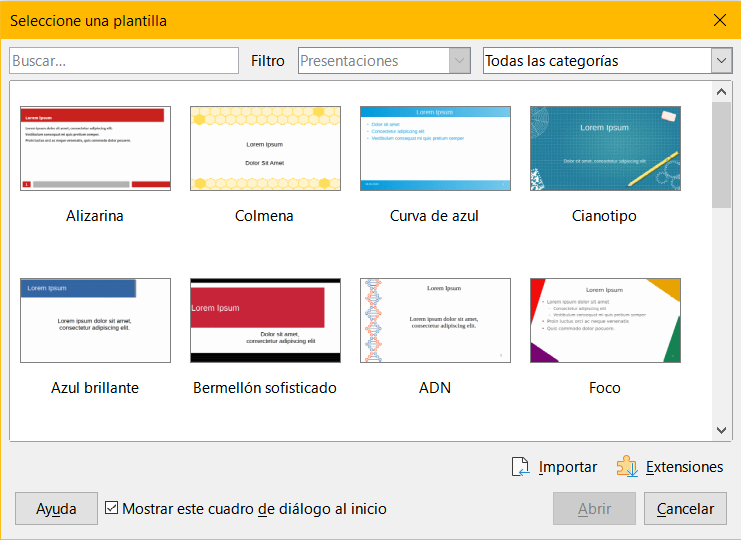
When entering for the first time, a screen appears where you can choose a pre-designed template, or click cancel to enter a new blank presentation.
In presentations, each page is called a slide.
This first slide indicates the cover: title of the work, author, group, course and some image (optional)
Create a presentation.
You can do it through the menu or through the toolbar icon.
If you use the menu:
- Look above for a menu called File and click.
- Scroll to New and click Presentation
- A screen appears where you can choose a pre-designed template, or click cancel to enter a new blank presentation.
If you are going to use the toolbar:
- Click on this button

- A screen appears where you can choose a pre-designed template, or click cancel to enter a new blank presentation.
Remember to save the file as soon as you create it so you don't lose what you do.
Save a presentation.
If you use the menu:
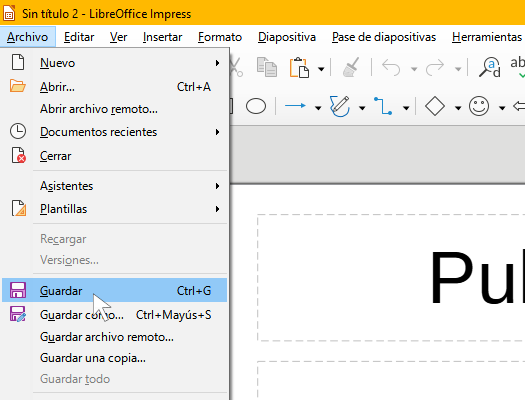
- Look at the top for a menu called File and click.
- Scroll to Save and click
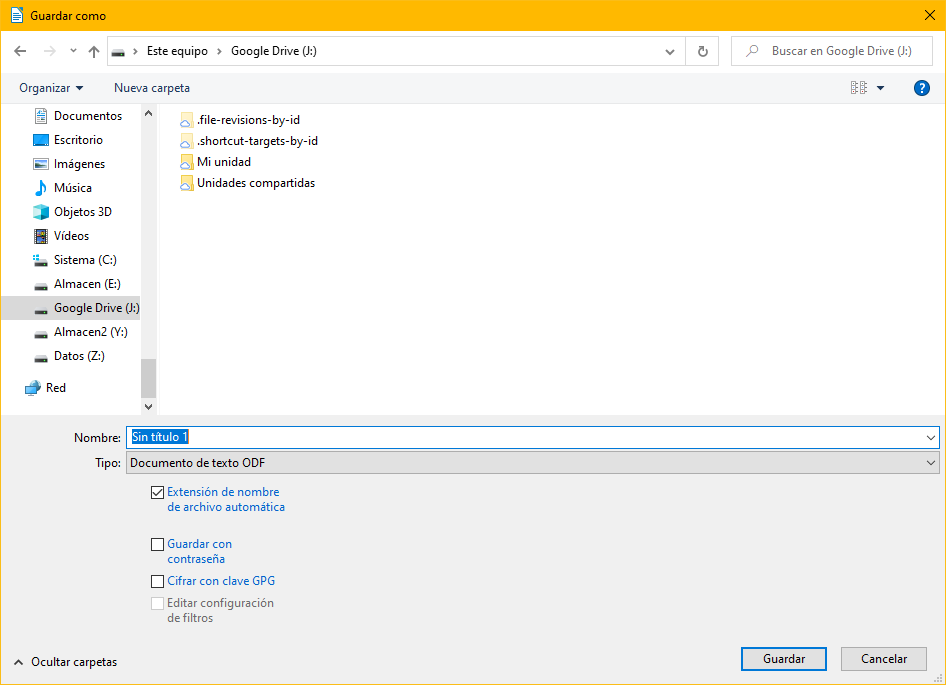
- Choose the folder on your device where you want to save it and the name of your work
- Click on accept
Remember to save the file from time to time so as not to lose your work.
If you are going to use the toolbar:
- Find this image (or similar) to save

- Choose the folder on your device where you want to save it and the name of your work
- Click Accept/Save