Create, open and save
A spreadsheet is a type of document that allows you to manipulate numerical and alphanumeric data arranged in the form of tables made up of cells, which are usually organized in a matrix of rows and columns.
Create a spreadsheet.
All operations can be performed from the menu or from the toolbar.
Look above for a menu called File and click.
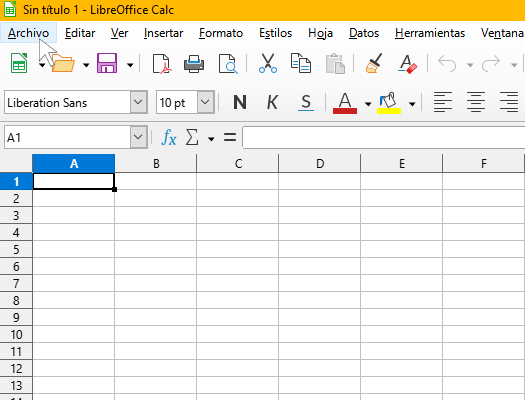
Scroll to New and click on Spreadsheet
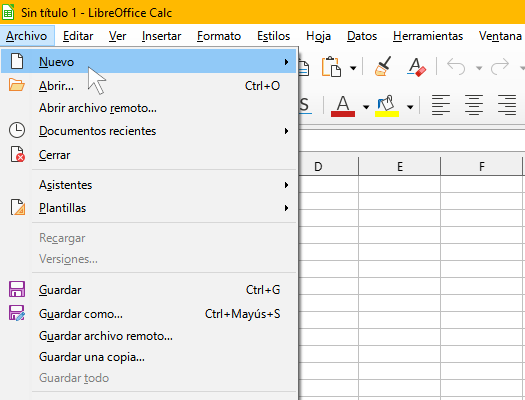
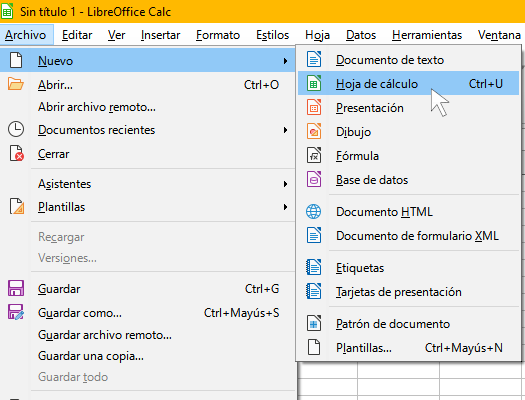
If you prefer to use the toolbar:
Click on the button 
Remember to save the file as soon as you create it so as not to lose what you do
Save a spreadsheet.
Look above for a menu called File and click.
Scroll to Save and click
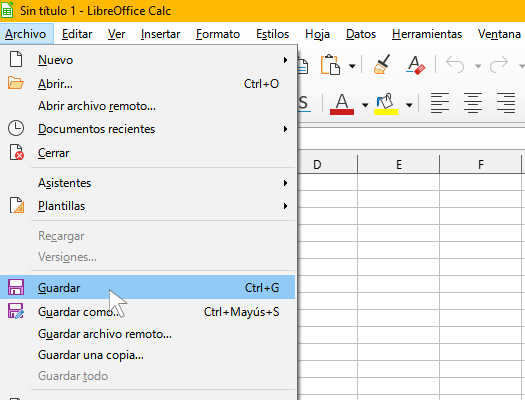
Choose the folder on your device where you want to save it and the name of your work.
Click Accept/Save.
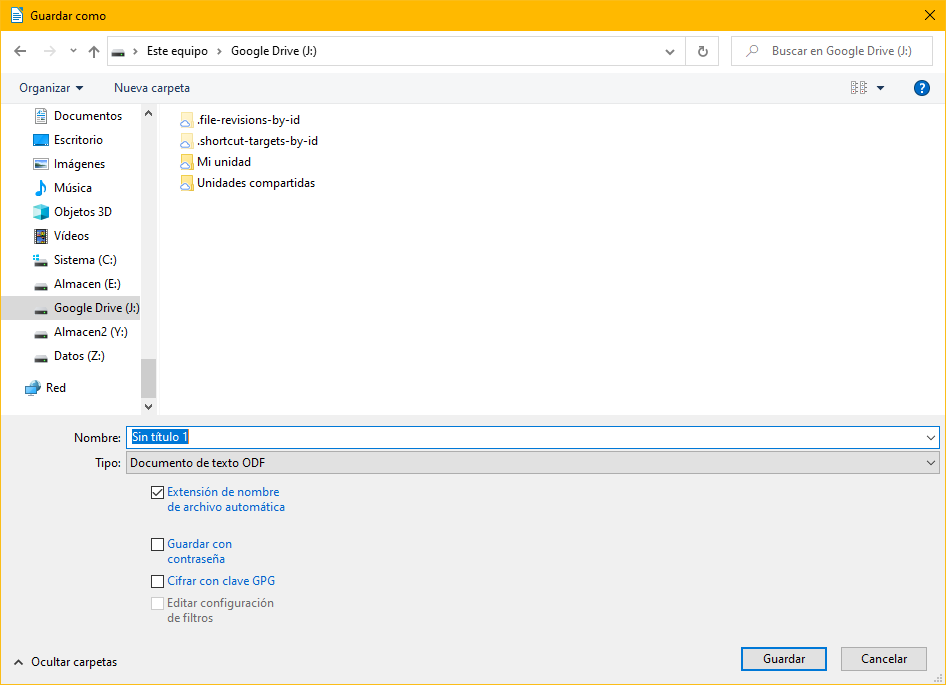
Remember to save the file from time to time so as not to lose your work.
If you prefer to use the toolbar: find this image  (or similar one) to save.
Choose the folder on your device where you want to save it and the name of your work.
Identify de active cell.
The active cell is the one that is open to include, modify or delete data.
To identify the cells, name the columns with letters A, B, C, D at the top of the grid.
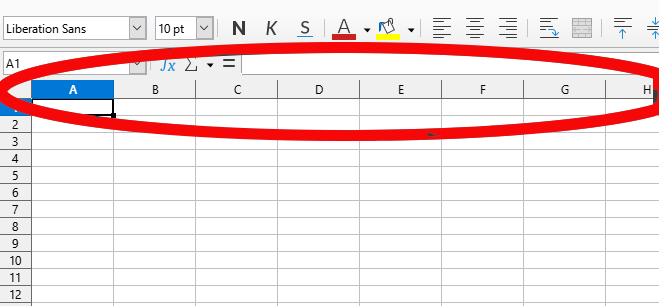
And the rows with numbers on the left:
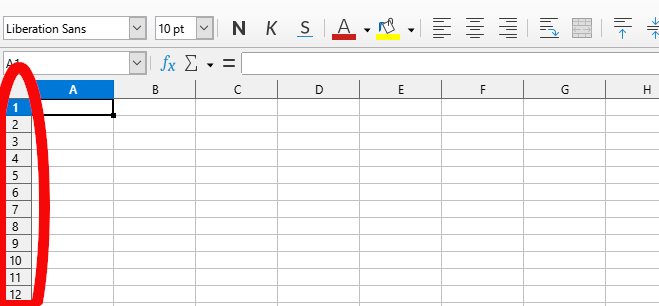
You can identify the active cell by looking at the drop-down menu that appears at the top left, or by looking at the row and column in which it is located:
Zoom in.
If you want to zoom in on the screen to see the cells at a larger size, you can do it in two ways:
Using the mouse:
- Look in the lower right corner for a line with a + and a -.
- If you click on + you will increase the zoom (it will look bigger)
- If you click on - you will decrease the zoom (it will look smaller)

Using the keyboard and mouse wheel: You can change the zoom by holding down the Ctrl button and then moving the mouse wheel up and down.
Remember : zooming has no influence on the print view.