What to do with the spreadsheet?
References between cells.
If you want the result of one cell to be the same as that of another cell, you can do it in two ways:
With the mouse:
- click with the mouse on the cell in which you want the result of another cell to appear
- write “=”
- Search with the mouse for the cell you want to copy and click on it
- press enter
Writing the formula:
- Identify the cell you want to copy, for example, B4
- decide in which cell you want the same result to appear, for example, D6
- write the following in cell D6: =B4
You can also reference a cell from another sheet.
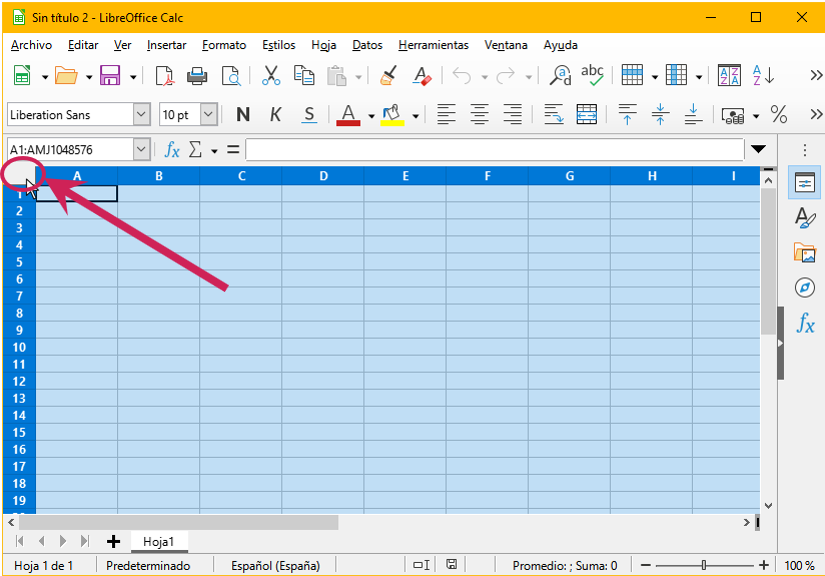
Select a row, column, or entire document.
Sometimes it is interesting to be able to select an entire column to change the format (text color, alignment, background...) or modify its size.
To select a row, click with the mouse on the row number you want to select. The options selected below will affect all items in the row.
To select a column, click with the mouse on the letter that represents that row.
To select the whole document, click with the mouse in the top left corner where the row and column numbers coincide. Sometimes the whole document is selected to give a common formatting to the cells, e.g. to center the text in all cells.
Insert a row or column.
By default, the spreadsheet already contains a large number of rows and columns created but if you need to insert a row or column between two columns that are already filled, you can do it in three ways:
FROM THE TOP MENU:
- Select with the mouse the row (or column) from which you want to insert one more.
- Click on Sheet in the top menu - Insert rows (or columns) and then select the option you need: Rows above or Rows below
WITH THE MOUSE:
- Right-click on the name of the row (or column, from which you want to insert another one).
- Select the Insert Rows Before or Insert Rows After option as appropriate.
WITH THE TOOLS MENU:
- Select with the mouse the row (or column) from which you want to insert one more. You could also just select a cell in that row or column.
- Look above in the tools' menu for the following icons
 (depending on whether you want to insert a row or column) and choose whether you want to insert before or after.
Delete a row or column.
You can delete an extra row (or column).
FROM THE TOP MENU:
- Select with the mouse the row (or column) from which you want to delete.
- Click in the top menu on Sheet - Delete rows (or columns).
WITH THE MOUSE:
- Right-click on the name of the row (or column from which you want to delete.
- Select the Delete rows (or column) option.
WITH THE TOOLS MENU:
- Select with the mouse the row (or column) from which you want to delete.
- Look for the following icons above in the tools menu (depending on whether you want to delete a row or column).
Addition.
To add two or more cells, you can do it in two ways:
With the mouse:
- Click with the mouse on the cell where you want the solution to appear.
- Click above on this option and choose SUM
 from the drop-down menu.
 - Select the cells you want to add with the mouse and press ENTER
Writing the formula:
- Click with the mouse on the cell where you want the solution to appear
- Write =SUM(range).
- Replace range with the cells you want to add, in the example we are adding cells D3 to D6
Mean or average of a set of data.
To average two or more cells you can do it in two ways:
With the mouse:
- Click with the mouse on the cell where you want the solution to appear
- Click up on this option and choose AVERAGE from the drop-down menu
- Select with the mouse the cells for which you want to calculate the average and press ENTER
Writing the formula:
- Click with the mouse on the cell where you want the solution to appear
- Write =AVERAGE(range)
- Replace range with the cells you want to calculate the average for,
- In the example we are using cells D3 through D6